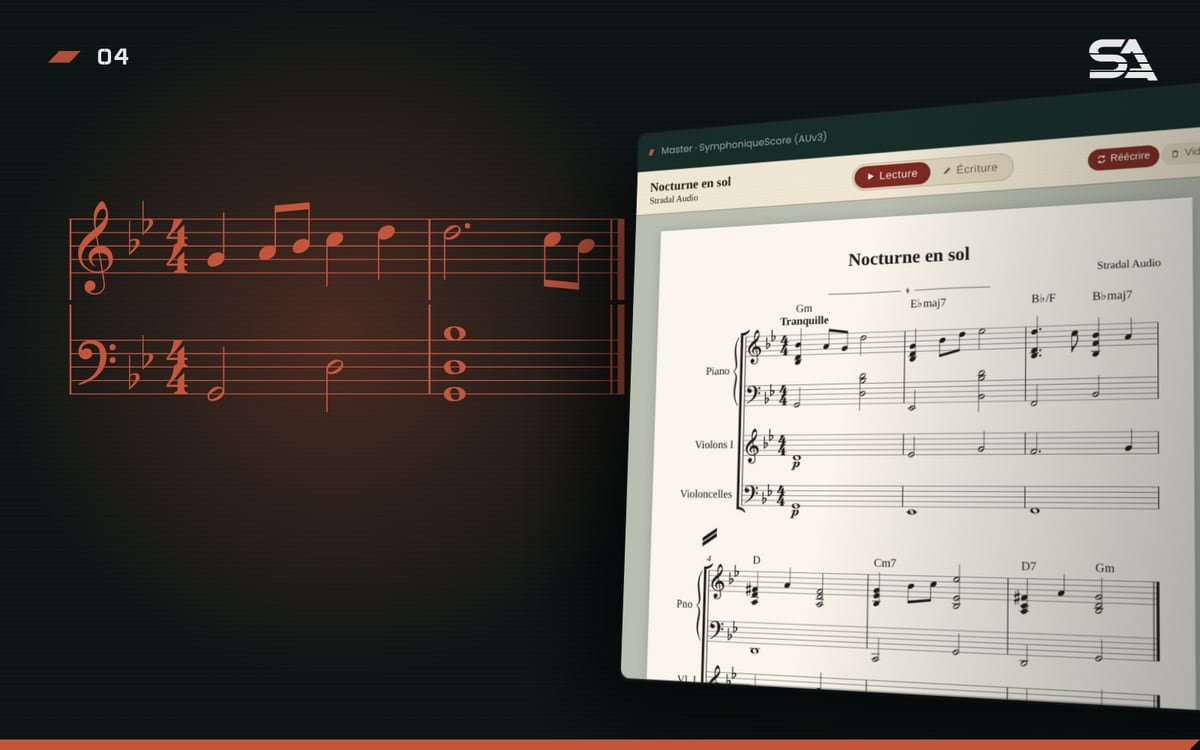
Why doesn't a MIDI file give you sheet music directly?
A MIDI file doesn't contain quarter notes or eighth notes. It contains events: this note starts at this moment, with this velocity, and stops at that moment. Time is counted in ticks, small units that split each beat into several hundred parts. Sheet music, on the other hand, speaks in rhythmic values: a quarter note, a dotted eighth, a triplet.
Going from one to the other therefore means guessing. When you play an eighth note slightly late and slightly short, the software sees a note that starts 30 ticks after the beat and lasts 70% of its value. If it writes it as is, you get a thirty-second rest, an eighth tied to a sixty-fourth, then another rest. Everything is mathematically correct, and it's unreadable.
MIDI doesn't say which key you're in either, whether an F sharp should be written G flat, which hand plays which note, or whether a phrase is legato or detached. You're the one who knows those things. The whole method below is about giving the software what it can't guess, before asking it to write.
Step 1: clean up the MIDI before any conversion
Start by working on a copy of your project or regions. The sound you've built matters, and clean sheet music sometimes means shaving off what makes the recording come alive.
- 1
One track per instrument
If your violins I and II are on the same track, split them. A score is read part by part: each MIDI track should match one staff, or two for a piano or a harp.
- 2
Remove the keyswitches
Orchestral libraries switch articulations with very low notes that don't sound. On a score, they become absurd notes six ledger lines below the staff. Delete them or isolate them on a separate track.
- 3
Hunt down ghost notes
A finger brushing a key leaves a velocity 5 note that lasts a thousandth of a beat. To the ear, nothing. On the score, a stray thirty-second note. Filter out very low velocities and very short notes, then listen to make sure nothing useful disappeared.
- 4
Merge the takes
Several overlapping regions on the same track give duplicate notes. Merge them into one region and delete identical stacked notes.
- 5
Shorten the overlaps
When playing legato, you often keep a key down after the next one is struck. For a monophonic instrument (flute, violin, voice), these overlaps create fake chords. Cut the end of each note at the start of the next one.
- 6
Check the tempo
If you played without a click, the project tempo doesn't match your playing and everything falls off the grid. Align the tempo to your performance, or replay the part to the click. It's faster than fixing a hundred bars by hand.
Step 2: quantize, and why it's the key
Quantizing means moving each note start onto the nearest rhythmic grid line. It's the step that decides whether your score will be readable. The rule: choose the smallest value you actually played, no finer. If your fastest passage is in sixteenths, quantize to the sixteenth. Quantizing to the thirty-second "to be precise" lets all the small playing inaccuracies through, and they then get written as tiny values.
Also think about note ends. Many programs quantize the start but leave the length as is. A note lasting 92% of a quarter can give a dotted eighth followed by a sixteenth rest. If your tool allows it, quantize the lengths too, or set the smallest rest value displayed.
Standard starting points, to adapt to what you actually played. When in doubt, listen to the fastest passage and count.
| Pads, held chords, bass lines | Eighth note | Little movement, readability comes first |
|---|---|---|
| Singing melody, simple accompaniment | Sixteenth note | Covers most written music |
| Fast passage, written-out ornaments | Thirty-second note, on that passage only | Only quantize fine where it's played fine |
| Swung eighths, swing, 12/8 | Triplet grid | A straight grid would break every triplet |
| Passage mixing straight and triplets | Mixed grid, or by selection | Quantize each passage with its own grid |
| Quantize strength | 100% for the score | The score wants clean values, the sound can keep its human feel |
Step 3: key and meter, set in the project
The key decides how notes are spelled. In G minor, the leading tone is written F sharp, not G flat. In E flat major, you want A flats, not G sharps. If the project doesn't know the key, the software picks at random or defaults to C major, and the score gets covered in accidentals.
- Enter the key and time signature in the project, at the start of the piece, before any conversion. In Logic, project signatures apply to the score and travel with exports.
- Mark each modulation at the bar where it happens. A key change in the right place removes dozens of accidentals at once.
- Check the meter: a piece played in 6/8 but left in 4/4 gives triplets everywhere. A waltz in 4/4 cuts every bar in two.
- Handle the pickup: if the melody starts on an upbeat, set the project start so the first full bar lands right, otherwise the whole piece is shifted by a beat.
Step 4: range, clefs and ottava
Each instrument has a range (the span of notes it can play) and a usual clef. Playing a cello part on the keyboard without thinking about it quickly gives notes the instrument can't produce. Check the limits before exporting: a player who gets an impossible note loses trust in the rest of the score.
| Instrument | Lowest note (concert pitch) | Usual clef | Good to know |
|---|---|---|---|
| Violin | G3 | Treble | Beyond four or five ledger lines, think 8va |
| Viola | C3 | Alto clef, treble up high | Writing a viola in treble clef from the start bothers violists |
| Cello | C2 | Bass, then tenor and treble up high | Change clef rather than stacking ledger lines |
| Double bass | E1 (often C1 with extension) | Bass | Written an octave above concert pitch |
| Flute | C4 | Treble | The low register is weak, don't give it a loud melody |
| B flat clarinet | D3 | Treble | Transposing instrument: sounds a whole step lower than written |
| Horn in F | about B1 | Treble (bass down low) | Sounds a perfect fifth lower than written |
When a part goes very high or very low, use ottava: 8va above a passage means "an octave higher than written", 15ma two octaves, 8vb an octave lower. It's especially true on piano, where a high run on seven ledger lines is unreadable. A simple rule: beyond three or four ledger lines for several notes, switch to ottava or change clef.
Step 5: tuplets and off-grid rhythms
A tuplet is a group of notes that divides a beat differently from the normal division: triplet (three in the time of two), quintuplet (five in the time of four), sextuplet. They're the worst enemies of automatic conversion, because a straight grid can't represent them. The software then rounds each note to the nearest sixteenth and your triplet becomes a dotted eighth, a sixteenth and an eighth.
- Spot the triplet passages by ear.
- Select only those passages and quantize them to a triplet grid.
- Quantize the rest to the usual straight grid.
- Reread the score at those spots: a correct triplet has a small 3 above or below the group.
For rubato or a free cadenza, don't try to fit everything into the bar. Write the passage in simple values and add a character marking: the player will do the rest better than any grid.
Step 6: on piano, split the hands
A piano sits on two staves, one per hand in principle. The most common method is to split at middle C: everything above goes in treble clef, everything below in bass clef. It's fast and often wrong. A left-hand chord that goes above middle C gets cut in two, and the right hand inherits notes it never played.
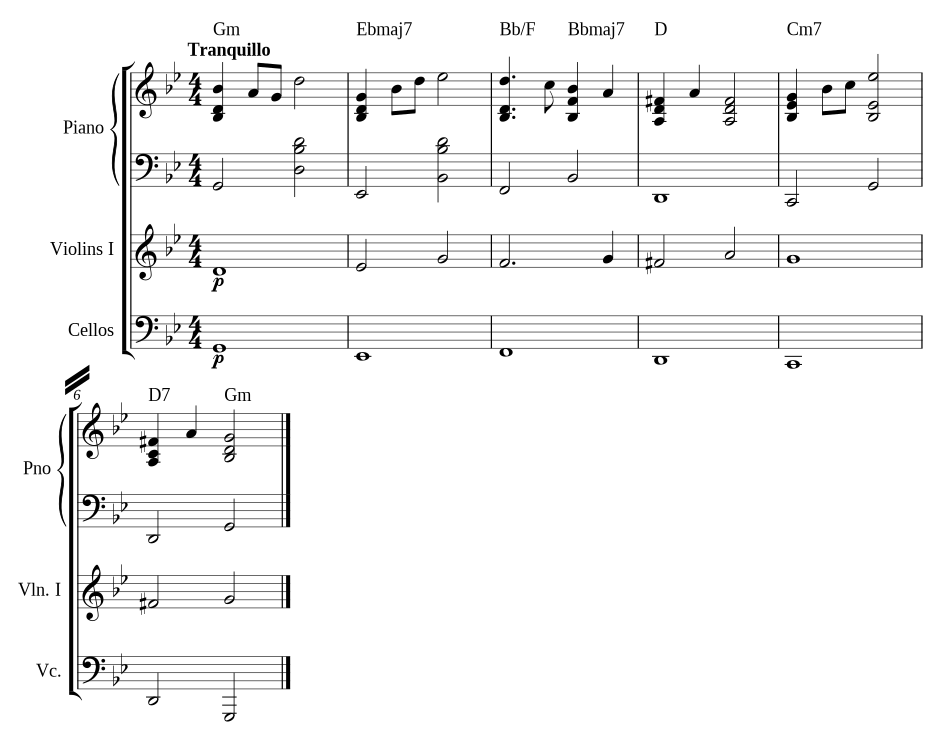
A better approach: look at what each hand can reach (an octave, sometimes a tenth for a big hand) and split the notes according to real playing, not a fixed pitch. The tutorial splitting left hand and right hand on piano compares both approaches on the same excerpt.
What automatic conversion can't guess
Even perfectly quantized, a score from MIDI stays bare. MIDI records the pitch, length and strength of each note, nothing more. Everything that says how to play is up to you to write:
- Phrasing: where a phrase starts and ends. A phrase slur isn't a tie, and no note length lets you guess the intention.
- Dynamics: a velocity of 80 can be an mf in a soft piece or a p in a loud one. Dynamics depend on context, not on the number.
- Articulations: staccato, accent, tenuto, marcato. A short note can be an intended staccato or a poorly held note.
- Playing techniques: pizzicato, mute, flutter-tongue, piano pedal.
- Breaths and bowings, fingerings, character markings like "Tranquillo" or "Agitato".
Some tools offer to convert velocities into dynamics. It's a good draft, rarely a final version. The method for rereading and completing all this is detailed in reading and correcting a score generated from MIDI.
Three possible paths, depending on your needs
| Path | For whom | Limit |
|---|---|---|
| Logic's score editor | A simple part, a quick check, a working document | Fine layout takes time |
| MIDI or MusicXML export to MuseScore, Dorico or Sibelius | Sheet music to print and hand out, with orchestral parts | Back and forth between two programs with every change |
| A plugin that engraves during playback | Watching the full score evolve while composing, without leaving the project | The finishing touches are still done by hand |
For export to a notation program, prefer MusicXML: it carries clefs, key signature, slurs and articulations. The MIDI file only carries the notes, the tempo and a few markers. It's all detailed in exporting a score to MusicXML and PDF.
With Stradal Score: the score writes itself while the project plays
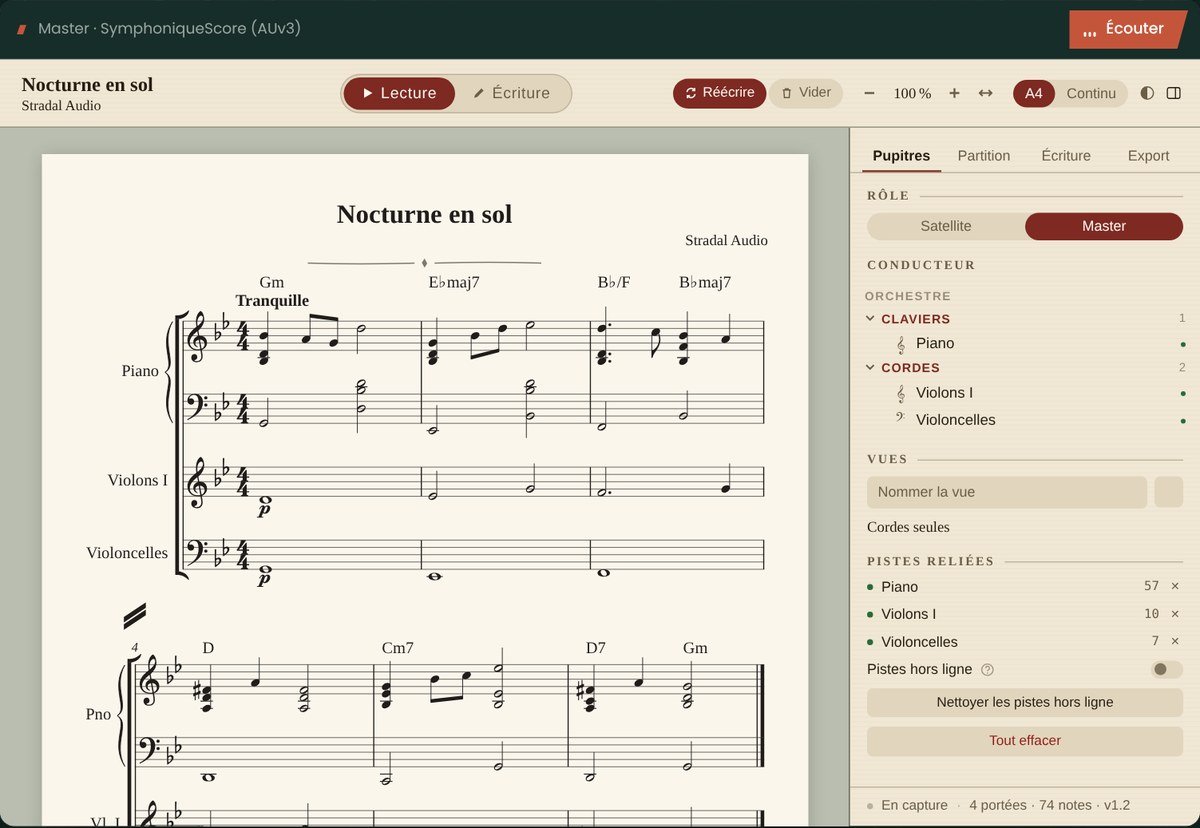
Stradal Score is a MIDI plugin in AU and VST3, for macOS and Windows, currently marked "Coming soon". It doesn't replace the preparation described above, it applies it live: each track carries a Satellite instance that captures its notes and declares its instrument, and a Master instance reads everything and engraves the full score with the Verovio engine.
- 1
One instance per track
Insert Stradal Score on each instrument track. In the Parts tab, leave them as Satellite and choose each track's instrument: the clef follows (for example treble clef, concert pitch).
- 2
One instance as Master
Switch one instance to Master. It gathers what every track sends; the Linked tracks list shows each track with its number of captured notes.
- 3
Set aside the keyswitches
On each Satellite, turn on "Ignore out of range": notes the instrument can't play, often keyswitches, leave the score.
- 4
Let it read key and meter
In the Score tab, Key and Meter on auto come from the project and are recalculated at engraving. Modulations are detected across 24 keys.
- 5
Play the project
With Rewrite on, playback writes the score. Turn it off to freeze the engraving: nothing touches it anymore. Clear erases the captured notes, the tracks stay linked.
- 6
Finish by hand, then export
In Edit mode, add articulations, dynamics and slurs, then output the score as PDF, MusicXML, PNG, SVG or MIDI from the Export tab.
On the rhythm side, the engine detects tuplets by vote, groups beams by half bar and places multiple ottavas (8va, 15ma, 22ma) when the Auto ottava option is on, rather than six ledger lines. In minor, the leading tone is written as a sharp.
A starting point for a first readable full score, with options that exist in the plugin. Then adjust to your piece.
| Role | Satellite on every track, Master on only one | Satellites capture, the master engraves |
|---|---|---|
| Ignore out of range | On | Keyswitches don't clutter the score |
| Key / Meter | auto | Read from the project, recalculated at engraving |
| Hand split (piano) | Smart | Each staff gets what one hand would have played |
| Start at the first bar played | On | Empty bars at the start aren't engraved |
| Hide empty staves | On | Instruments that never play disappear |
| Auto ottava (8va) | On | Fewer ledger lines |
Frequently asked questions
Can you convert an MP3 or a WAV to sheet music the same way?
No, not directly. An audio file doesn't contain separate notes: you first need an audio-to-MIDI transcription, which adds its own errors. The method in this tutorial then applies to the resulting MIDI, with even more cleanup.
Why is my score full of thirty-second notes and weird rests?
Because the MIDI wasn't quantized, or was quantized to a grid that's too fine. Every small playing inaccuracy then gets written as a tiny value. Quantize to the smallest value you actually played, often the sixteenth, and also check note lengths.
Should you quantize at 100%?
For the score, yes: it needs clean values. For the sound, not necessarily. Keep an unquantized version for playback, or use separate display quantization when your software allows it, like Logic's score editor.
My software writes sharps instead of flats, what should I do?
Enter the right key in the project, at the bar where it starts, and mark each modulation. Note spelling depends on the key signature. A note will sometimes still need fixing by hand, especially in chromatic passages.
MIDI or MusicXML to open my score in MuseScore?
MusicXML whenever possible. It keeps clefs, key signature, slurs and articulations. A MIDI file forces MuseScore to guess everything again, with its own quantization on import.
Does Stradal Score work outside Logic Pro?
Stradal Score works in AU and VST3, on macOS and Windows: in Logic Pro, GarageBand and the other major DAWs. The plugin is marked "Coming soon" and its demo is playable on the site.
Updated on November 18, 2026.